How to Export a Telegram Chat, and Make a PDF From It
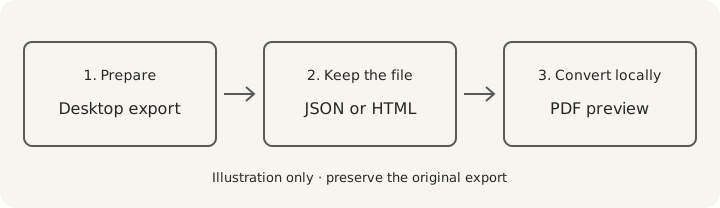
Use Telegram Desktop to export a conversation as JSON or HTML. The iPhone and Android apps do not offer this Desktop chat-history export route, so begin on a computer even if you normally read messages on your phone. Once you have the file, convokeep can make a PDF locally in your browser.
What you get
Telegram creates a folder containing message data and any media you selected. JSON commonly uses a file named result.json; HTML produces readable pages that may be split across files. Photos and recordings can sit in separate subfolders. Keep the folder together so relative media references and multiple pages are not lost.
For PDF conversion, JSON is the simplest starting point. The PDF presents the sender and time with each message, and lets you search, choose a date range, redact messages and rename participants. The first 3 pages are free to preview with a watermark and no integrity page; the full export is paid.
Step-by-step export
- Windows, Mac or Linux: install the official Telegram Desktop client that provides data export. Sign in to Telegram on your own computer. convokeep does not handle that sign-in or request your Telegram credentials.
- Open the conversation and its three-dot menu → Export chat history. This is the single-conversation route described in Telegram's export announcement, rather than a request for every chat in your account.
- Choose Machine-readable JSON (needs verification: exact current label), or HTML. Review the available date and size options. Include media if you need the original attachments, or leave it unchecked for a smaller export focused on text.
- Choose a destination folder and start the export. Let Telegram finish before moving or zipping the folder. Open the folder to confirm you have message data, not only images or an empty destination.
- Phone only: create the export through Desktop first. A file forwarded to your phone is still a Desktop export; forwarding a few messages is not equivalent to exporting the conversation history.
- Saved the file on your phone? Move it to your computer. Transfer it over USB, email or a cloud drive you trust. Then select result.json, the HTML export or a zip containing the export folder in convokeep.
Check the export before making a PDF
Compare its earliest and latest dates with what you expected, and check several senders in a group. Including attachments does not promise that every attachment will be embedded in your PDF. Keep originals separately and inspect the preview for labels and missing periods. A converter cannot recreate messages absent from the export.
Continue with Telegram chat to PDF when the file is ready. For a phone-based text export from another platform, see how to export a LINE chat.
Privacy
convokeep builds the preview and PDF entirely in your browser. No chat or attachment is uploaded. No convokeep account is needed. Cookieless events exclude message text, participant names and file names. Read the privacy policy.
Email, cloud drives and separate exporters have their own data handling. For a local file transfer, use a cable. convokeep's browser-only promise covers conversion.
Keepsake vs Record
Keepsake uses a book-style layout for memories and printing. Record adds page numbers and an integrity page alongside sender and time information. That page contains the source SHA-256, transcript SHA-256, counts and generation time in UTC. The finished PDF's hash is supplied separately.
A matching hash lets you check unchanged bytes against a trusted earlier value. It does not prove the source conversation is authentic or complete. Read the disclaimer and the integrity-hash explanation.
FAQ
- Can I export from iPhone or Android?
- Use Telegram Desktop for the export described here. The phone apps do not provide this Desktop chat-history export workflow.
- Should I choose JSON or HTML?
- Start with JSON for structured conversion. HTML is useful for reading the original export in a browser; preserve its folder and any additional pages.
- Does the other person know I exported?
- A notification to the other participant is not known for this workflow, but it has not been verified for every client version. Do not rely on a universal notification promise.
- Where is my exported file?
- Look in the destination folder you selected in Telegram Desktop. A JSON export commonly contains result.json; HTML exports contain message pages and may have media subfolders.
Related guides
Ready to try it?
Drop your exported chat to see a free preview on the convokeep app. The first 3 pages appear with a watermark and no integrity page; saving the full PDF is a one-time paid purchase.
This document was generated locally in the user's browser; no content was uploaded.
Prepared for submission, with an integrity hash. Not legal advice. Whether it is accepted is decided by the court or agency.
This document was generated locally in the user's browser; no content was uploaded.