How to Print a KakaoTalk Chat
The more screenshots you take, the more the order gets mixed up and messages get cut off at the edge of the screen. Export the chat, build one PDF in the convokeep app and print it from a computer, and the result is much cleaner. All processing finishes in your browser.
What you get
A PDF where every message carries a date, time and sender. Before saving, you can search within the chat, choose a date range to include only what you need, black out specific messages (deleting them from the PDF) and rename participants. The free preview covers the first 3 pages (watermarked, no integrity page); saving the full document is paid.
- One file: the pages run in order, so nothing falls between screenshots.
- Date breaks and page numbers: choose Record and page numbers are added, so it is easy to point to a place on paper.
- Text-first layout: it reads fine even when printed on a black-and-white printer.
How to export a KakaoTalk chat
First export the chat on your phone. KakaoTalk exports a chat as a .txt file. Menu names may differ a little by app version. Find them in the order below for your kind of phone.
- iPhone: In the chat room, open the menu (≡), go to Chat contents and choose Send text messages only. You can also choose email and receive it in your own mailbox.
- Android: In the chat room, open the menu (≡), tap Export chat contents, then choose Send text only or Send all messages. Save it to your phone or Drive.
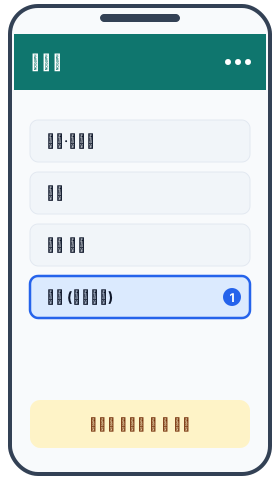
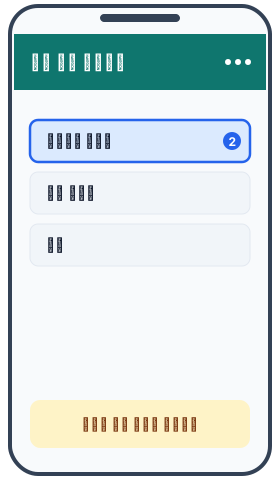
- PC: In a chat room in KakaoTalk for PC, open the menu, then Chat contents and Export chat, and save it as a .txt file.
- If you saved the file on your phone, move it to your computer. Send it through KakaoTalk's Chat with myself, email (write to yourself), a cloud drive or USB, whichever is easiest. Once you have the .txt file on your computer, load it on the convokeep page.
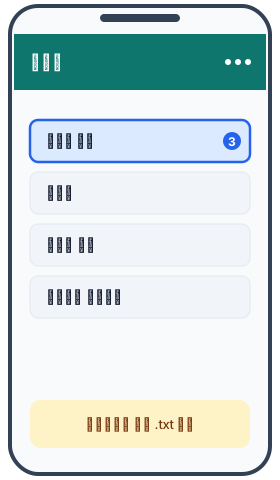
If the email does not arrive, check your spam folder first, and for a large chat try exporting again with text only. Unless you really need photos, text only is recommended.
Printing the PDF
Once the PDF is saved, open it in a PDF viewer on your computer and click print. Set the paper to A4 and the scale to 100% and the text size stays as it is. It helps to print one page first to check the margins before printing the rest.
Privacy
Reading the file, building the PDF and calculating hashes all happen in your browser. No chat or attachment is uploaded and there is no account. The site counts visits and exports with cookieless analytics, and those events never contain message text, names or file names. Nothing is left once you close the tab. Read the full privacy policy.
Keepsake vs Record
Keepsake uses a book-style layout that is pleasant to read and suited to keeping or printing. Record adds page numbers, sender and time, and an integrity page with the SHA-256 of the source file and of the transcript data. For a printout to hand to a lawyer or a company, Record is handy because you can refer to page numbers; for a chat you simply want to keep on paper, Keepsake reads like a book.
A later copy whose SHA-256 hash matches the recorded hash has not changed since that hash was recorded. This does not show that the original chat is authentic or complete. Prepared for submission, with an integrity hash. Not legal advice. Whether it is accepted is decided by the court or agency. Read the disclaimer.
FAQ
- Can I print without screenshots?
- Yes. Export the chat from KakaoTalk and drop it on convokeep, and you get a single PDF. Instead of stitching many screenshots together, you print just one file.
- Can I print only part of the chat?
- If you choose a date range before saving, only that period goes into the PDF. You can also black out messages you do not want on paper.
- Can I tell who said what on paper?
- Every message carries a date, time and sender, and the chat is split by day, so the flow is easy to follow even on paper.
- Can I print straight from my phone?
- You can, but a computer is easier. Move the exported file to your computer, build the PDF, then print it from a PDF viewer.
Related guides
- KakaoTalk chat to PDF
- KakaoTalk chat PDF for evidence
- Keep a KakaoTalk chat as a book
- How to export a KakaoTalk chat
- Print a WhatsApp chat
Ready to try it?
Step away from screenshots. Drop your exported chat file on the convokeep app for a free preview. The first 3 pages are free (watermarked, no integrity page); saving the full PDF is a one-time paid feature.
This document was generated locally in the user's browser; no content was uploaded.