How to Export a WhatsApp Chat
WhatsApp can turn any chat into a file, but only from the phone app, and the menu is easy to miss. This guide covers iPhone, Android and PC, shows how to get the file onto a computer, and ends with turning it into a PDF in the convokeep app.
What you get
An export is a plain text file, or a .zip when you attach media. Drop it on convokeep and you get a PDF of the whole chat with the date, time and sender on every message. Before you save you can search, pick a date range, redact a message and rename participants. The free preview shows the first 3 pages with a watermark and no integrity page; the full PDF is paid.
Step-by-step export
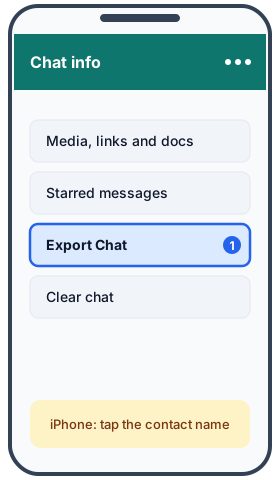
Do this on your phone. WhatsApp creates the export file on your phone, as a plain .txt file or, when you attach media, as a .zip. Both work here. Menu names can differ slightly between app versions.
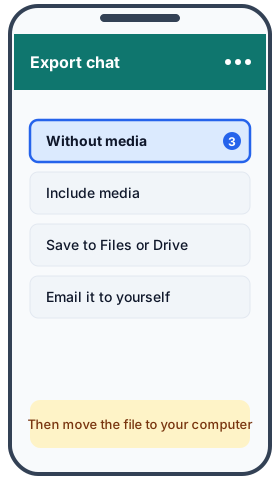
- iPhone: open the chat, tap the contact or group name, tap Export Chat, choose Without Media (or Attach Media), then Save to Files.
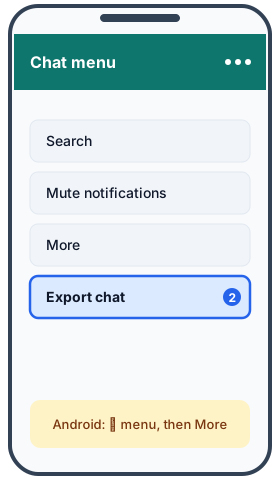
- Android: open the chat, tap the ⋮ menu, then More, then Export chat. Choose Without media or Include media, then save the file or share it to Drive.
- PC: WhatsApp Desktop has no export button. Export on your phone first, then continue with step 4.
- Saved the file on your phone? Move it to your computer. Email it to yourself, put it in a cloud drive such as Google Drive, iCloud or OneDrive, or copy it over USB. Then drop the .txt or .zip file on the convokeep page.
- Long chats: WhatsApp exports up to 40,000 messages without media, and only about 10,000 with media. For a very long chat, export without media.
Why the 40,000-message limit exists
WhatsApp builds the export on the phone, so it stops at a size it can handle: up to 40,000 messages without media and only about 10,000 with media. If your chat is older than the export reaches, you will find the oldest messages missing. Export without media for the longest history; photos then appear as short placeholders such as [image].
Privacy
The file is read and the PDF is built in your browser. No chat or attachment is uploaded and there is no account. The site counts visits and exports with cookieless analytics, and those events never contain message text, names or file names. Read the full privacy policy.
Keepsake vs Record
Keepsake is a book-style layout meant to be saved or printed. Record adds page numbers, a sender and time stamp on every message, and a SHA-256 integrity page for the source file and for the PDF. Pick Keepsake for memories and Record when you need page numbers and hashes. A hash shows that a file was not altered after it was made. It does not prove that the original chat is authentic or complete, and convokeep is not legal advice. See the disclaimer.
FAQ
- Can I export a WhatsApp chat from the desktop app?
- No, WhatsApp Desktop has no export button. Export on your phone, then move the file to your computer.
- Should I choose Without Media or Attach Media?
- Without media is smaller, faster and allows far more messages. Attach media only when you need the files themselves and the chat is short enough.
- Why is my export missing old messages?
- WhatsApp caps exports at 40,000 messages without media and about 10,000 with media. For a very long chat, export without media, or export it in parts.
- Does the other person get notified?
- Exporting makes a file on your own phone. WhatsApp is not known to notify the other person, but check your app version if it matters.
Related guides
- Export on iPhone, detailed
- Export on Android, detailed
- WhatsApp chat to PDF
- Print a WhatsApp chat
- WhatsApp chat for submission
- WhatsApp keepsake book
- KakaoTalk export guide (Korean)
Ready to try it?
Got your file? Drop your exported chat to see a free preview on the convokeep app. The first 3 pages are free, watermarked and without the integrity page; saving the full PDF is a one-time purchase.
This document was generated locally in the user's browser; no content was uploaded.